→
Arrows
Point directly at buttons, bugs and important areas.
Add arrows, text, shapes, highlights and blur to screenshots and images directly in your browser.
Everything you need
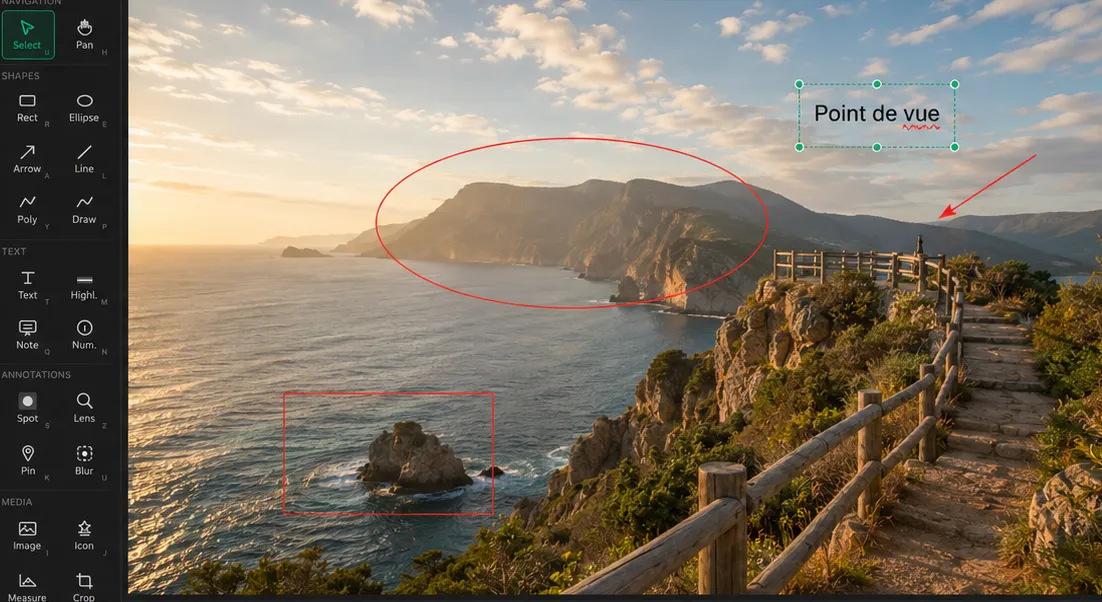
Make screenshots easier to understand with simple visual annotation tools.
Point directly at buttons, bugs and important areas.
Add comments and explanations directly to an image.
Frame buttons, areas and interface elements.
Circle important parts of your screenshot.
Draw freely directly on your image.
Draw attention to important information.
Hide sensitive information before sharing.
Keep only the useful part of your image.
Simple workflow
Upload an image or paste a screenshot directly from your clipboard.
Use arrows, text, shapes, drawing, highlighting and blur.
Download your annotated screenshot and share it anywhere.
Visual communication
Annotated screenshots make feedback and instructions easier to understand.
Point directly at the part of an interface where a problem occurs.
Comment visually on interfaces, mockups and product designs.
Create clear visual instructions and step-by-step guides.
Show customers exactly where to click and what to change.
Make product documentation easier to follow.
Communicate visual ideas quickly with teammates and clients.
Available anywhere
No complicated image editor to install. Open the tool, add your screenshot and start annotating.
Upload or paste your screenshot into the editor, then use arrows, text, shapes, drawing, highlighting and blur to add your annotations.
No. The annotation editor works directly in a modern web browser.
Yes. Use the arrow tool to point directly at buttons, bugs, interface elements or other important areas.
Yes. You can blur selected areas before exporting and sharing your screenshot.
Yes. The editor can also be used to annotate photos, mockups, diagrams and other supported images.
Make screenshots easier to understand with clear visual annotations.
Open the editor